System Manager Software Suite Installation
The System Manager software suite installer installs the following software:
-
System Manager:
-
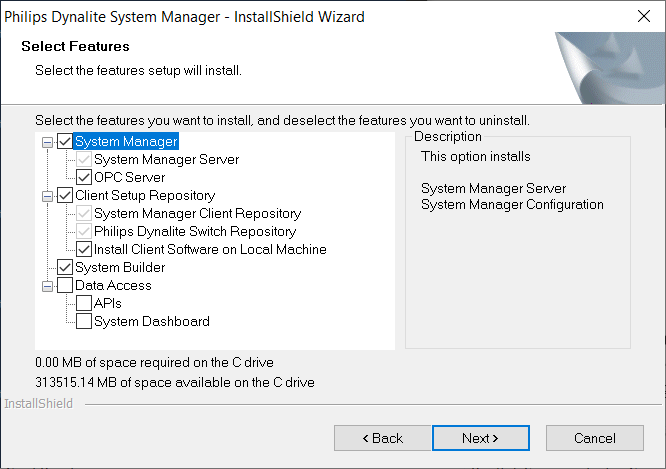
System Manager Server - communicates with the client software (System Manager and Switch)
-
System Manager Configuration - configures databases, users, and site settings
-
System Builder - commissioning software, compatible with the System Manager version
-
-
Client Setup Repository:
-
System Manager Client software - control, monitor, and maintain the Dynalite system via the SM server
-
Switch - control the lights above the user’s desk
Install System Manager
|
To enable the Lighting API and System Dashboard, you must first install PostgreSQL database and configure Microsoft Internet Information Services. Please refer to the System Manager installation steps at https://dynalite.com/userdocs/lighting-api/ |
-
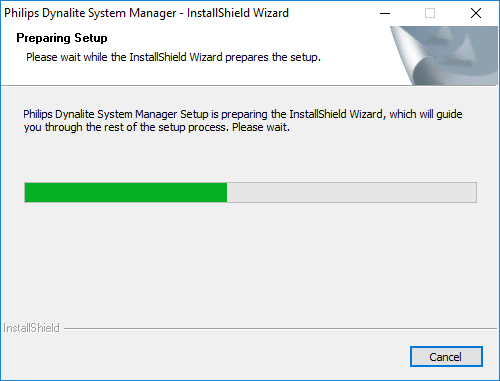
Right-click the System Manager installer file and select Run as administrator to launch the InstallShield Wizard.
-
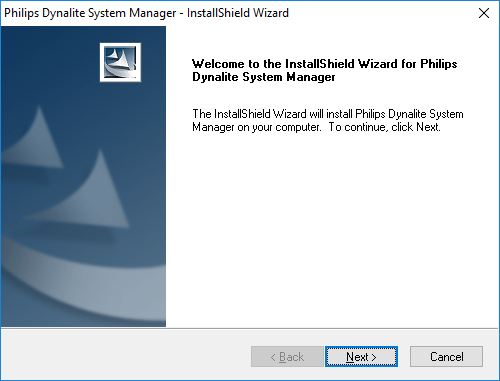
Click .
-
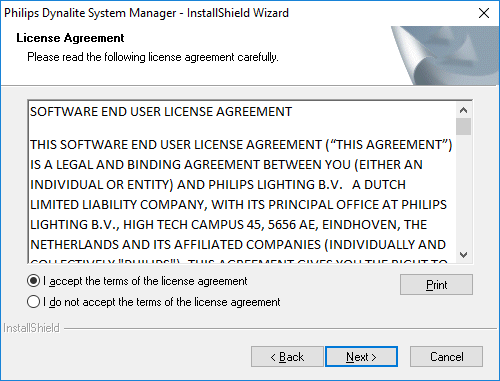
Accept the license agreement and click .
-
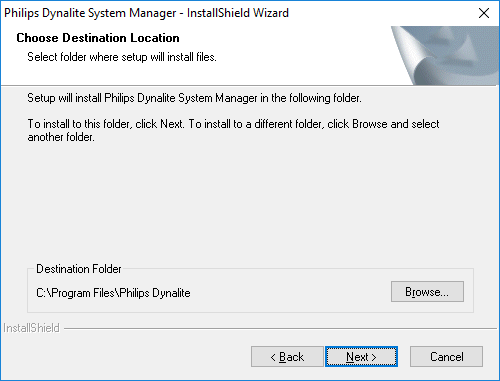
If required, change the installation folder via the button, and click .
-
Select the features to install from the list and click .
-
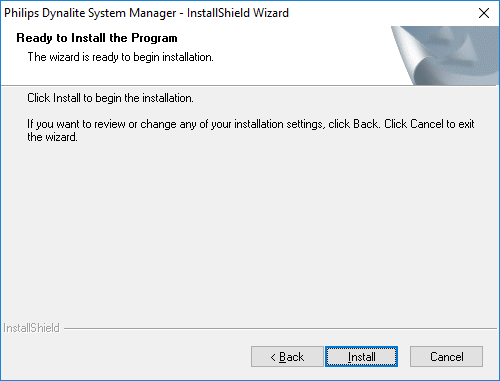
Click to install the selected features.
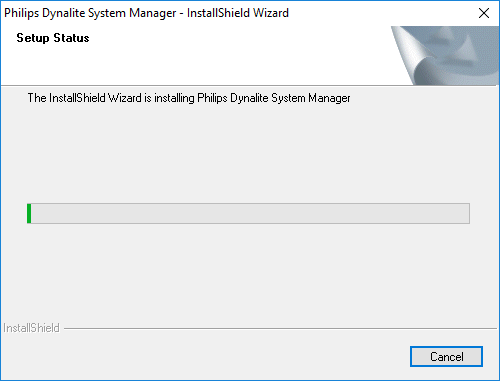
Files are installed in several locations - by default, the System Manager application is saved to the Program Files folder, while client files are saved to a new folder on the OS drive, e.g.:
C:\Philips Dynalite\System Manager.The wizard shows the installation progress.
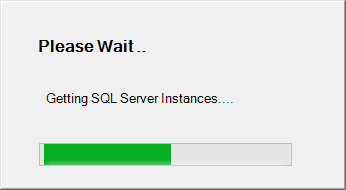
A second pop-up notifies that the SQL server instances are connected.
-
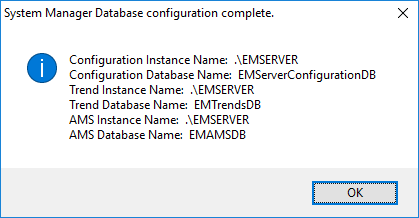
Once installation is successfully completed, the wizard displays a message to confirm that System Manager server and SQL databases are created. Click .
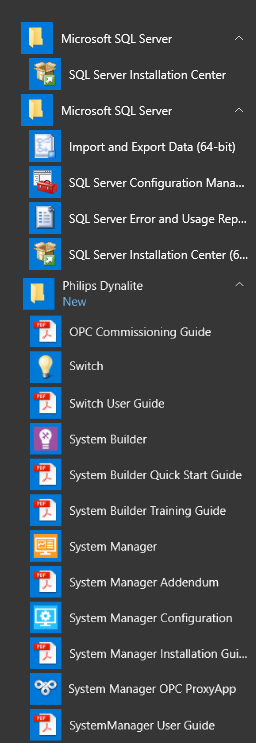
The following program and documentation shortcuts are now available from the Windows Start menu: