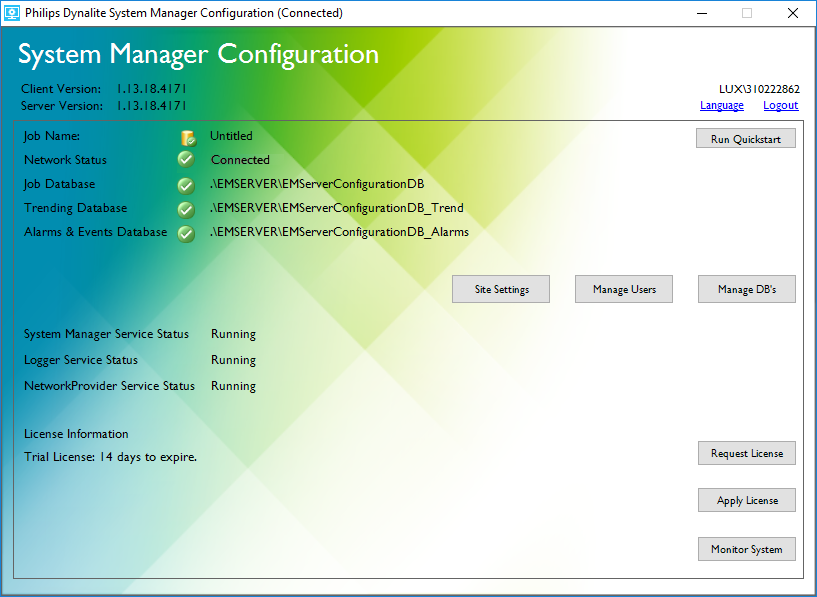
Run Quickstart
The Quickstart wizard configures System Manager databases and users. To begin, click and follow the steps below:
-
Select Start from System Builder job file or Start from a System Manager Configuration Database, then click .
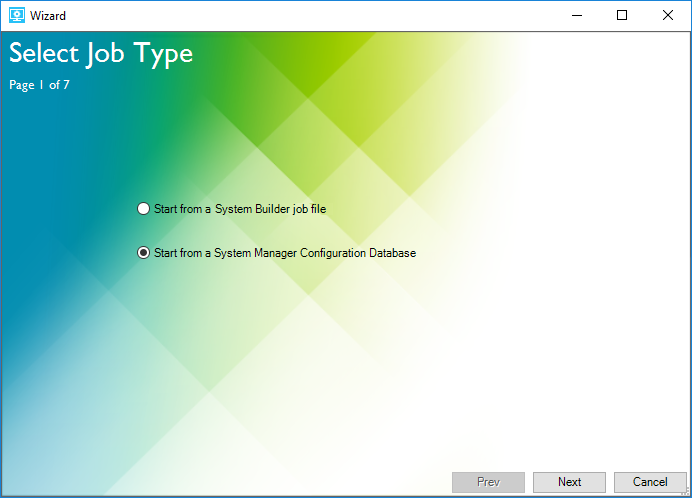
-
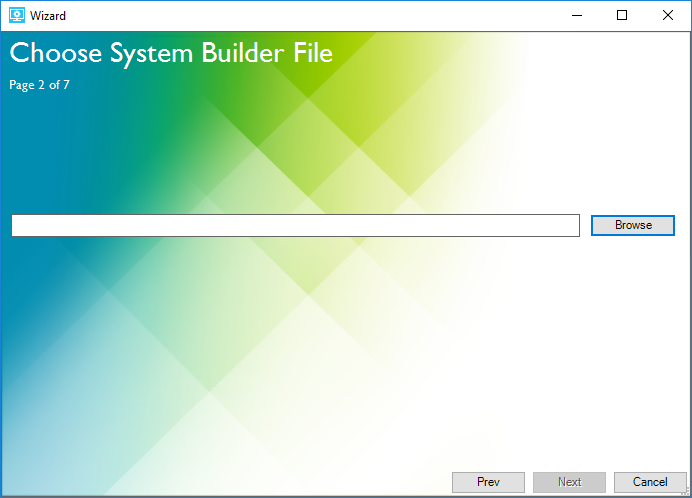
If you chose a job file: click to upload the System Builder job file.
If you chose a database: select the default Server Name as .\EMSERVER, and Database Name as EMServerConfigurationDB.
The ".\" before the server name is shorthand for the local host machine. If using a remote SQL database server, replace this with the required computer name. 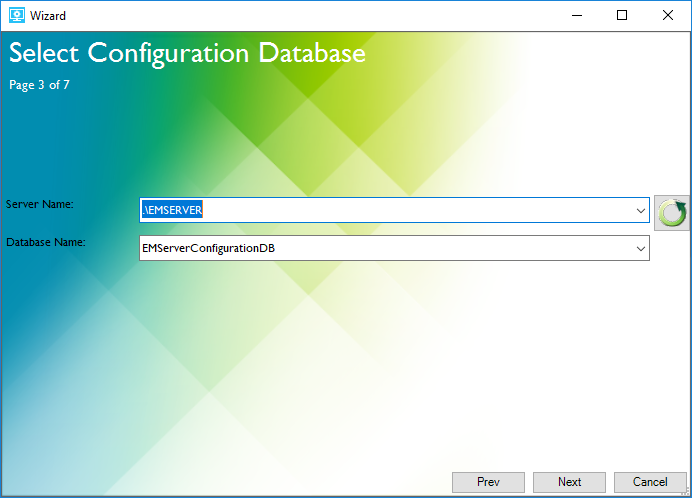
-
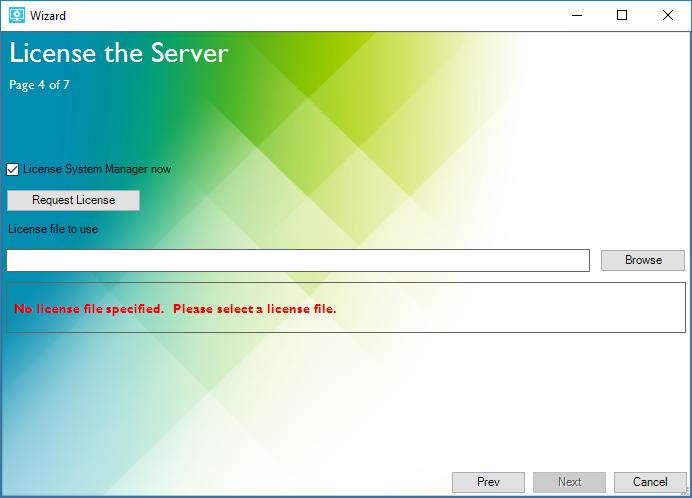
If SM is unlicensed, tick the
 License System Manager now checkbox and:
-
If you need a license: click and complete the request form (See Request License), or:
-
If you have already received the license file: Click to apply your license (See Apply License).
Click .
-
-
Enter a username to be the Site Administrator (superuser), or click to select usernames from the Select User or Group window.
If applicable, tick the optional
Allow guest users to log on and/or Add the guest user to the "Normal Users" role checkboxes.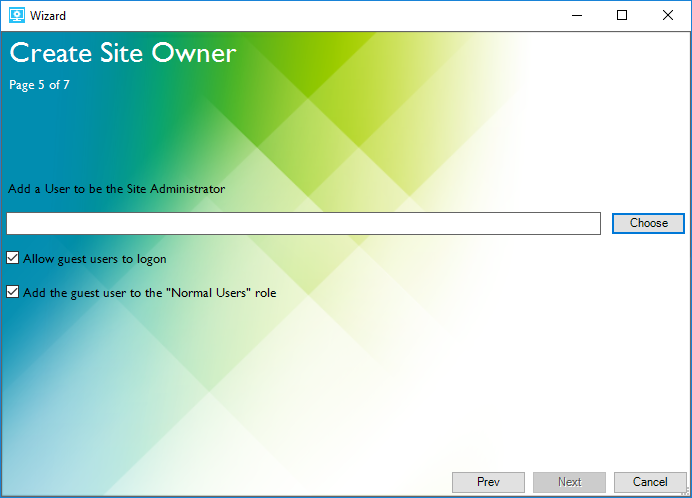
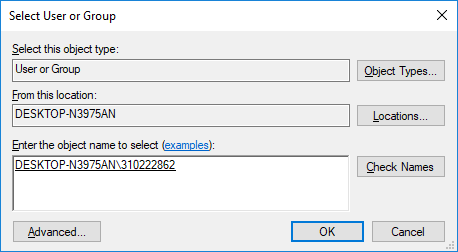
In the Select User or Group window, enter a username (object name) and click to verify the name. Click .
-
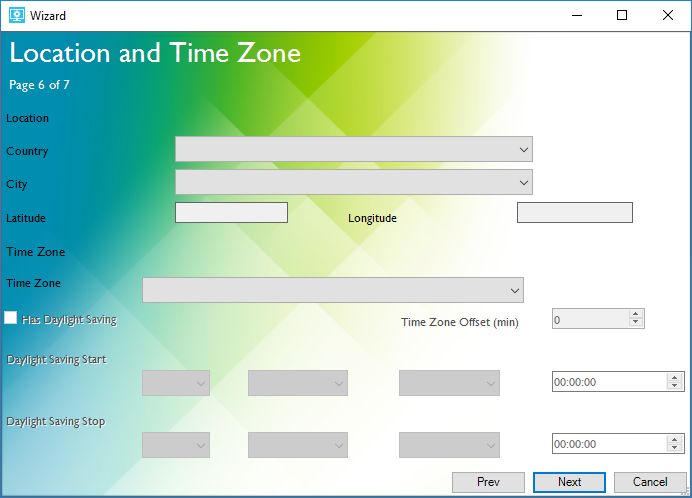
Enter the site location and time zone information, then click .
-
Click to create the required databases, site owner, users, and default user roles.
Click after executing to close the wizard.
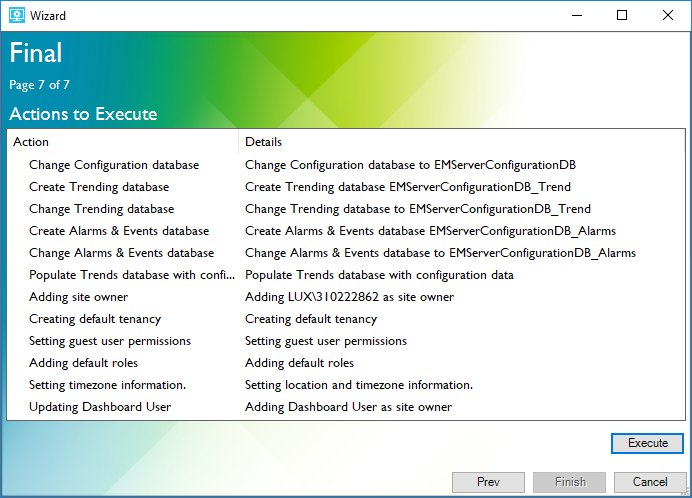
The databases and users are now configured.