Custom Meters
If your Modbus meter is not natively supported by System Builder, you can add it as a custom meter. This process is identical for RS-485 meters (DDNG485, PDDEG-S, PDEG, PDEB), and for TCP/IP meters (PDDEG-S).
| You will need the meter manufacturer’s documentation for this procedure. |
-
In System view, select the required network gateway and open the Properties > Create Device > Meters tab.
-
Click the button to open the Modbus Meter Editor window.
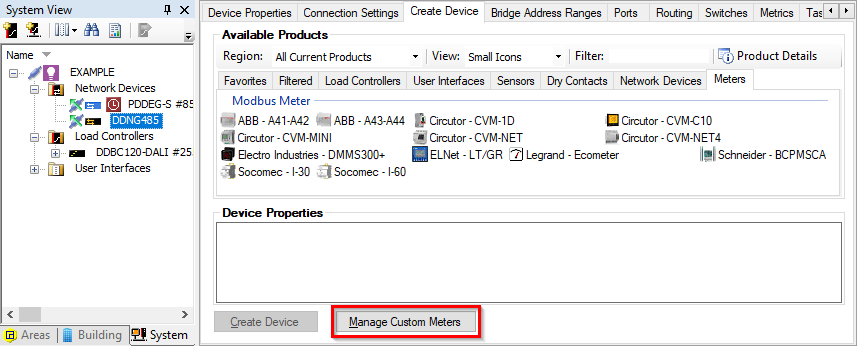
-
Click the
 Add Meter button, then enter a Name, Manufacturer, and Function Code for the new meter.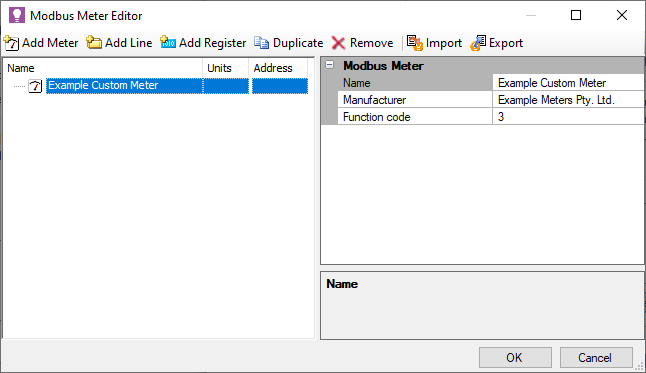
-
Use the
 Add Line and
  Add Register buttons to add and assign the meter’s registers as documented by the manufacturer. Unlined registers can just be added directly to the device.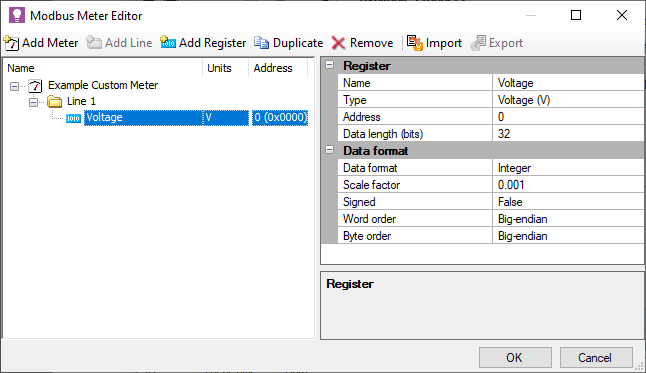
-
Edit the Register and Data format properties for each register as documented (see Supported Register Types below). Click to save your changes and return to System Builder.
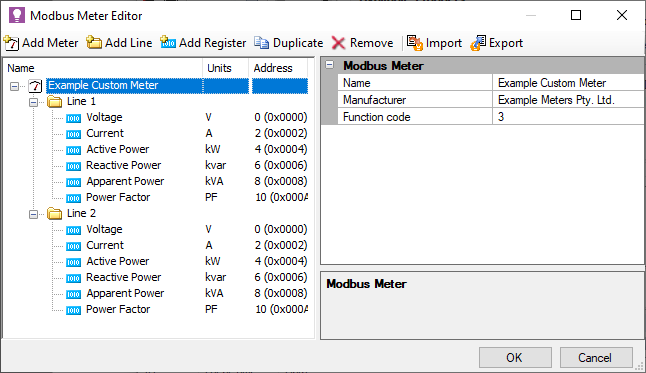
| Lines and registers are locked once a custom meter is added to the job. To make further changes you must first delete the meter from System view, edit as needed, then re-add it to the job. |
You can use the  Import and Import and  Export buttons in the Modbus Meter Editor to copy custom meters between SB jobs. Export buttons in the Modbus Meter Editor to copy custom meters between SB jobs.
|
Supported Register Types
| Dynalite gateways support onboard polling for Active Power and Active Energy registers only. Modbus polling for other registers from System Manager must be enabled in System Manager Configuration > Site Settings > Polling. |
| Register | Value | Register | Value | Register | Value |
|---|---|---|---|---|---|
Voltage |
V |
Current |
A |
Active Power |
kW |
Reactive Power |
kvar |
Apparent Power |
KVA |
Power Factor |
PF |
Phase Voltage |
V |
Temperature |
degrees |
Inductive Power |
kvarL |
Capacitive Power |
kvarC |
Frequency |
Hz |
THD of Voltage |
% |
THD of Current |
% |
Active Energy |
kWh |
Reactive Energy |
kvarh |
Apparent Energy |
kVAh |
Inductive Energy |
kvarLh |
Capacitive Energy |
kvarCh |
RMS Voltage |
V |
Harmonic of Voltage |
% |
RMS Current |
A |
Harmonic of Current |
% |
Other |
Other |